
Juggling multiple devices? You’re not alone. The average person now uses three or more devices daily—phones, tablets, laptops, smartwatches. But here’s the frustration: your data doesn’t travel smoothly between them. A message sent on your phone doesn’t appear on your laptop. Files saved on your desktop seem invisible on your tablet. This fragmentation kills productivity.
Cross-platform communication with seamless syncing solves this problem. It’s the invisible technology that keeps your digital life together. Whether you’re a remote worker managing team projects, a student coordinating across devices, or a professional handling client communications, understanding how to sync data seamlessly can transform your workflow from chaotic to effortless.
What is Cross-Platform Communication and Seamless Syncing?
Cross-platform communication refers to the seamless exchange of information and data across different digital platforms, devices, and operating systems. Think of it as a universal translator for your digital life. It allows your smartphone, laptop, tablet, and web browser to work in harmony, sharing information instantly and consistently.
Seamless syncing is the technology that makes this happen. Instead of manually transferring files or re-typing information, syncing automatically ensures that when you update something on one device, it reflects everywhere else instantly. This happens through cloud-based storage, synchronized protocols, and application programming interfaces (APIs) that bridge the gap between different systems.
Here’s how it works in practice: You start an email draft on your phone during your commute. You arrive at the office and open your laptop. That draft is already there, ready for you to continue. You make changes, click save, and check your phone—the updated version appears instantly. No uploads, no downloads, no manual effort. That’s seamless syncing.
The technology relies on several components working together. Cloud servers act as a central hub, storing your data. Synchronization protocols communicate changes made on one device to all other devices. Encryption keeps your data secure while traveling between devices. APIs (Application Programming Interfaces) enable different applications to communicate with each other, sharing information in a standardized format. When all these components work together correctly, users experience seamless, invisible synchronization.
Key Features and Benefits of Seamless Cross-Platform Syncing
Seamless cross-platform syncing offers transformative advantages that directly impact productivity and user experience.
Real-Time Data Synchronization — Changes made on one device appear instantly on all others. This eliminates the frustrating gap where you’re working with outdated information. For teams collaborating on projects, real-time sync ensures everyone has the latest version of files, comments, and updates.
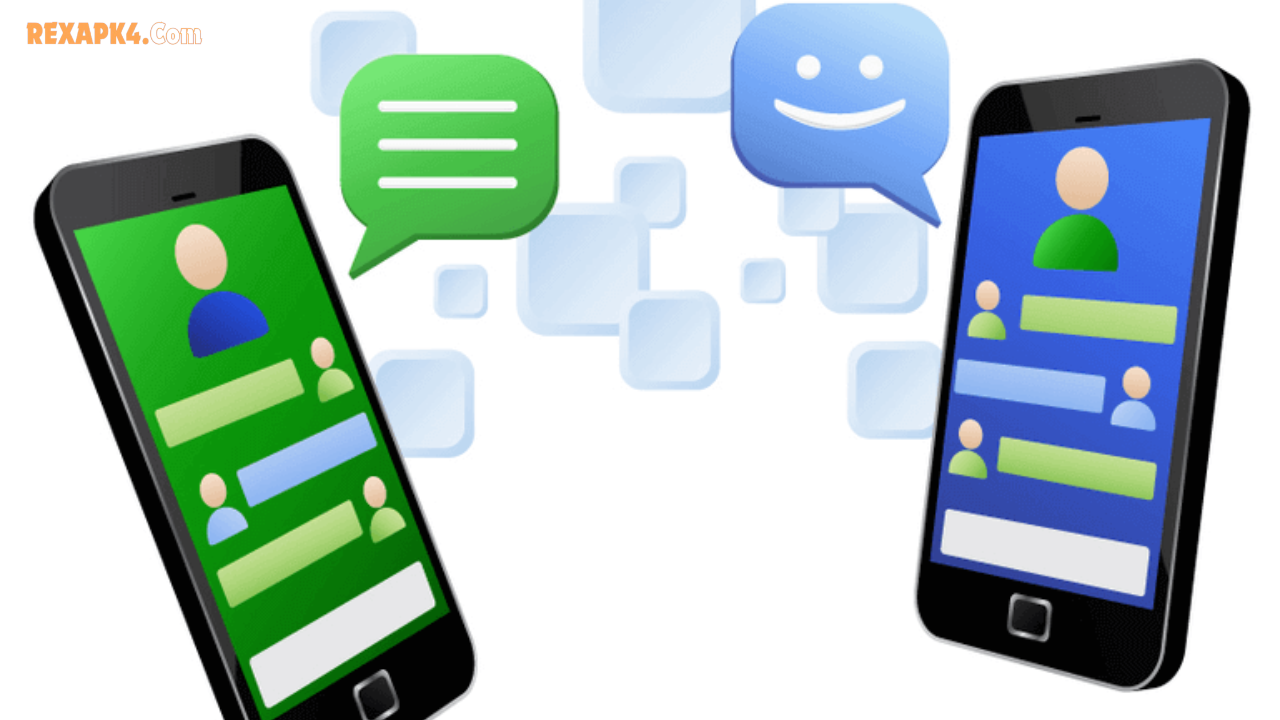
Unified Inbox and Messaging — Managing communication across email, SMS, and chat platforms becomes seamless when unified messaging systems gather everything into one interface. Slack and Microsoft Teams exemplify this by combining emails, messages, and calendar updates in a single view, reducing the need to switch between applications.
Cloud-Based File Accessibility — Your documents, images, and files are instantly available on any device with internet access. Whether you’re on your phone in a coffee shop or at your desktop, the same files await you. Services like Google Drive, OneDrive, and Dropbox make this effortless.
Offline Access with Sync — Modern syncing tools work even without internet. Edit documents offline, and once you reconnect, changes synchronize automatically. This is crucial for people traveling or working in areas with unreliable connectivity.
Automatic Backup and Recovery — Your data syncs continuously to secure cloud servers. If your device is lost or damaged, your information remains safe and recoverable from any other device. This provides peace of mind and business continuity.
Platform Consistency — Users experience the same features and interface regardless of whether they’re using iOS, Android, Windows, or Mac. A note taken on your iPhone looks and functions identically on your iPad and Mac. This consistency reduces confusion and speeds up adoption.
Collaborative Real-Time Editing — Multiple people can edit the same document simultaneously, seeing each other’s changes instantly. Google Docs and similar tools demonstrate how this transforms team productivity, eliminating email chains and version confusion.
Reduced Manual Data Entry — With syncing, information entered once automatically populates across connected systems. A contact added to your phone instantly appears in your laptop’s address book. This saves time and reduces data entry errors.
Flexible Workflow Across Devices — Start work on your phone, continue on your tablet, finish on your desktop. Syncing remembers where you left off, allowing you to pick up work seamlessly on any device. This flexibility is essential for modern remote and hybrid work environments.
Comparison: Cross-Platform Syncing Methods
| Feature | Cloud-Based Solutions | API Integration | Unified Messaging Platforms | Traditional File Transfer |
|---|---|---|---|---|
| Speed | Real-time synchronization | Real-time when configured | Instant within platform | Manual and slow |
| User Effort | Minimal, automatic | Requires technical setup | Minimal, user-friendly | High, repetitive |
| Cost | Subscription-based | Variable, implementation costs | Monthly subscriptions | Free but time-consuming |
| Security | End-to-end encryption standard | Depends on implementation | Enterprise-grade security | Vulnerable to interception |
| Device Support | Multi-platform native apps | Depends on API availability | Broad platform coverage | Limited compatibility |
| Learning Curve | Very easy for users | Steep for developers | Easy for end-users | No curve, but inefficient |
| Data Integrity | Excellent, conflict resolution | Strong when properly configured | Very good within ecosystem | Poor, prone to duplicates |
| Offline Capability | Yes, with sync on reconnect | Depends on implementation | Limited, usually requires internet | Not applicable |
Cloud-based solutions like Google Drive shine in simplicity and accessibility. API integration excels for enterprise systems connecting disparate platforms. Unified messaging platforms provide superior communication experiences. Traditional file transfers, while free, represent significant time waste in modern workflows.
Pros and Cons of Seamless Cross-Platform Syncing
Advantages
Increased Productivity — Eliminating device switching and manual transfers saves hours weekly. Remote workers can continue projects seamlessly across their morning phone usage, office laptop work, and evening tablet review.
Reduced Friction in Workflows — Friction—the effort required to accomplish a task—drops dramatically. Sharing files becomes one tap instead of email attachments. Collaboration requires no coordination of versions or manual consolidation.
Better Data Accessibility — Critical information is available instantly on any device, from anywhere. During an unexpected meeting, you access client information immediately from your phone instead of scrambling to find it later.
Enhanced Collaboration — Team members see the same information simultaneously. Conflict and confusion over “which version is current” disappears. Real-time editing allows faster iteration and feedback.
Improved Data Security — Cloud-based syncing includes automatic encryption, regular backups, and access controls that exceed what most individual users implement locally. Device loss becomes recoverable rather than catastrophic.
Scalability and Flexibility — As your needs change, you can add or remove devices without disrupting syncing. Businesses can scale from a few users to thousands without architectural changes.
Always-Current Information — Data never becomes stale. Financial data, customer information, project status—everything reflects current reality across all devices and team members.
Disadvantages
Privacy Concerns — Your data resides on third-party servers. Even with encryption, the privacy implications warrant careful consideration. Terms of service changes can shift how your data is used or stored.
Dependency on Internet Connectivity — While offline modes exist, full functionality typically requires internet. Remote workers in areas with poor connectivity face limitations despite syncing technology.
Learning Curve for Complex Systems — While basic cloud syncing is intuitive, configuring advanced enterprise integration requires technical expertise. Setup costs and ongoing management can be expensive.
Potential Data Conflicts — When multiple people or devices edit the same information simultaneously, conflicts emerge. Syncing systems attempt to resolve these automatically, but sometimes manual intervention is needed.
Vendor Lock-In — Switching between platforms can be complicated if data is heavily integrated with one provider’s ecosystem. Migration can be time-consuming and costly.
Performance Issues with Large Datasets — Syncing massive amounts of data (large video files, extensive databases) can consume bandwidth and slow devices. Compression helps but sometimes at the cost of quality.
Security Vulnerabilities — While major providers maintain strong security, sync systems represent attractive targets for hackers. Breaches, though rare, can expose significant amounts of personal data.
Synchronization Lag — In areas with poor connectivity or overloaded systems, syncing may be delayed. Usually brief, but can be frustrating during time-sensitive work.
Cost Accumulation — Multiple subscription services for different syncing needs add up. A cloud storage service, unified messaging platform, and project management tool can cost hundreds monthly.
Latest Updates and Best Practices for 2026
RCS Messaging Expansion — Rich Communication Services (RCS) has become the new standard for cross-platform messaging. Both Android and iOS devices now support RCS, enabling high-quality media sharing and enhanced messaging across platforms. This represents a major step toward universal seamless messaging, replacing older SMS limitations.
AI-Powered Synchronization — 2026 sees AI increasingly managing sync conflicts and optimizing which data syncs to which devices. Machine learning predicts what data you’ll need on each device, pre-syncing it before you arrive. This reduces lag and improves battery life on mobile devices.
Enhanced Security Standards — Zero-trust architecture and end-to-end encryption are becoming default, not premium features. Organizations increasingly require encryption even for low-sensitivity data. Biometric authentication adds another security layer beyond passwords.
Offline-First Architecture — Developers are prioritizing offline functionality more than ever. Apps work fully offline, then sync changes when connectivity returns. This approach suits the hybrid work environment where connectivity can’t be assumed.
Compliance and Privacy Regulations — GDPR in Europe and CCPA in the US have driven platforms to offer granular control over synced data. Users can now specify which data types sync to which devices or cloud providers. Transparency requirements mean platforms clearly disclose what data syncs and where.
Cross-Platform Development Frameworks — Flutter and React Native continue advancing, making it easier for developers to create apps that sync seamlessly across iOS, Android, and web from a single codebase. This reduces bugs and ensures consistency.
Real-Time Collaboration Tools — Tools like Figma, Notion, and Miro have perfected simultaneous multi-user editing with seamless syncing. Expect more specialized applications adopting similar real-time collaboration capabilities in 2026.
Voice-Driven Synchronization — Voice assistants now trigger synchronization and control which data syncs. “Sync my calendar to my work devices” or “Don’t sync this folder to my phone” commands are becoming reality, giving users voice-first data management.
Practical Tips for Optimal Cross-Platform Syncing
Choose Your Core Platform Wisely — Decide which ecosystem (Google, Apple, Microsoft) forms your primary syncing hub. Build your syncing strategy around that choice. This reduces conflicts and ensures better integration across your devices.
Enable Two-Factor Authentication — Before relying on cloud syncing, protect your accounts with two-factor authentication. Since all your synced data depends on your account security, this single step dramatically reduces breach risk.
Review Sync Settings Monthly — Different apps sync different data to different places. Monthly audits reveal what’s syncing unnecessarily. Disable syncing for sensitive information you don’t need across all devices. This improves privacy and reduces cloud storage usage.
Understand Conflict Resolution — When simultaneous edits create conflicts, know how your tools resolve them. Most maintain versions, but some automatically choose one. Understanding this prevents data loss from unexpected behavior.
Use Selective Syncing — Don’t sync everything to every device. Your phone doesn’t need your 100 GB photo archive. Desktop doesn’t need your mobile app cache. Selective syncing improves device performance and reduces bandwidth usage.
Test Before Relying on Syncing — Before putting critical workflows on syncing, test edge cases. Edit offline, then reconnect. Check how conflicts resolve. Know your system’s behavior under stress before it matters.
Keep Apps Updated — Syncing technology improves constantly. Updates fix bugs and add features. Set apps to auto-update, ensuring you benefit from the latest syncing improvements.
Document Your Setup — Write down how your syncing is configured. Which apps sync to which devices? What’s encrypted? What’s backed up where? This documentation saves troubleshooting time and helps others understand your system.
Monitor Sync Health — Use platform-provided sync status indicators. Unresolved conflicts or failed syncs indicate problems. Addressing these immediately prevents data loss or information divergence.
Balance Security with Convenience — The most secure system (offline, no syncing, no backups) is useless if you don’t use it. Find the balance between security and convenience that fits your actual workflow.
Frequently Asked Questions
Q: How do I prevent my personal data from syncing to my work devices?
A: Most platforms allow selective syncing. Disable syncing for specific folders or apps on work devices. Alternatively, maintain separate cloud accounts—one personal, one professional. Apple offers different iCloud options, Google allows multiple account management, and Microsoft supports device enrollment that controls what syncs.
Q: What happens if my internet is slow? Will syncing still work?
A: Syncing adapts to available bandwidth. It may be slower, but it continues. For large files, compression helps. Many apps allow you to pause syncing, then resume later when bandwidth is available. Offline-first apps continue working, syncing changes when connectivity improves.
Q: Is my data safer with syncing or stored locally?
A: Syncing offers better safety for most users. Cloud providers employ security teams, encryption, and redundant backups that exceed individual device security. Local storage offers no backup if your device fails or is lost. A combination—sync important data to cloud, keep offline copies of critical information—offers the best protection.
Q: Can I sync between different ecosystems like Apple and Google?
A: Yes, but it requires more setup. Use neutral platforms like Microsoft 365, which works across ecosystems. Calendar syncing between Apple and Google works through CalDAV protocols. Email syncing uses IMAP and OAuth. More direct apps are appearing (Apple’s integration with Microsoft, for example) but ecosystem switching requires more manual configuration than staying within one ecosystem.
Q: How often does data actually sync? Is it truly “instant”?
A: “Instant” is a marketing term. Most cloud services sync within seconds to a few minutes. Real-time collaborative tools like Google Docs sync within milliseconds. Messages sync within a second. However, offline devices sync once connectivity returns, potentially after minutes or hours. Check your specific app’s sync interval documentation.
Q: What’s the difference between syncing and backing up?
A: Syncing keeps multiple copies of the same data in sync across devices—if you delete something on your phone, it deletes on your laptop too. Backing up creates copies kept separately; deleting the original doesn’t affect the backup. For workflow data, syncing is ideal. For important archives, backups are essential. Most robust systems use both.
Q: Can syncing work with sensitive information like financial data or health records?
A: Yes, if done correctly. Financial apps use end-to-end encryption and multi-factor authentication. Banks like those with mobile apps implement bank-grade security. Health apps comply with HIPAA (in the US) or similar regulations. Choose apps specifically designed for sensitive data. Never sync sensitive information through generic consumer services like Dropbox without understanding their encryption and compliance certifications.
Conclusion
Cross-platform communication with seamless syncing has shifted from luxury to necessity in 2026. The world doesn’t stop at your device boundary. Your work, your communication, your information flows across phones, tablets, laptops, and the cloud. The friction between these devices is what slows you down.
Embracing seamless syncing transforms your digital life from a collection of isolated devices into a unified system. Starting a project on your phone, continuing on your tablet, finishing on your laptop—all with no friction, no file transfers, no catching up. This is what seamless syncing enables.
The key is choosing the right tools for your actual workflow. Cloud storage for files, unified messaging for communication, collaborative tools for teamwork. Set it up once, configure your privacy preferences, then let it work invisibly in the background while you focus on what matters.
Ready to simplify your digital life? Start by consolidating your messaging into one platform this week. Add cloud file storage next. Test syncing one folder across your devices. Once you experience frictionless workflow, you’ll wonder how you worked any other way.