
Getting a passport size photo used to mean visiting a photo studio, waiting in line, and spending money — just for a small picture. Today, things are much simpler.
With a one click passport size photo maker, you can create a professional-looking passport photo right from your phone or computer — in seconds. In this guide, you will learn what these tools are, how they work, and which ones are worth using.
What is a One Click Passport Size Photo Maker?
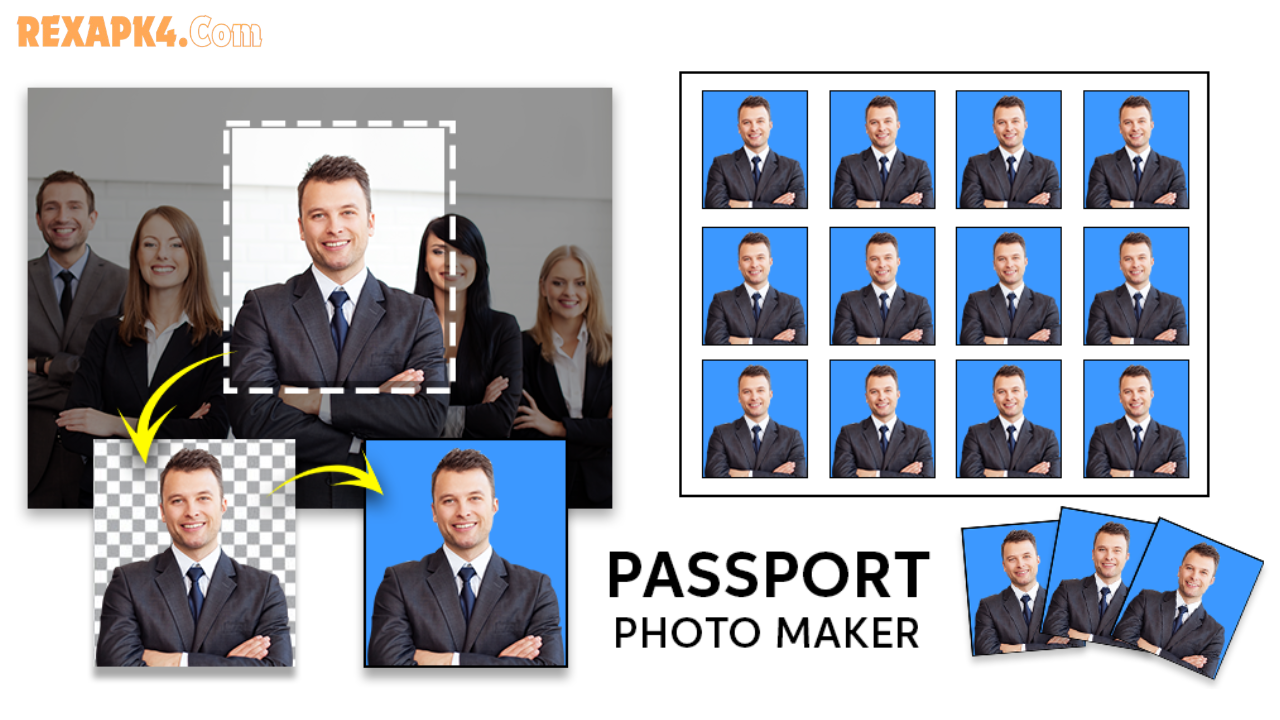
A one click passport size photo maker is an online or web-based tool that automatically resizes, crops, and formats your photo to meet official passport size standards.
You simply upload your photo, and the tool does the rest — background removal, size adjustment, and proper formatting — all with minimal effort.
These tools are designed for anyone who needs a quick, accurate, and professional passport photo without using complex photo editing software.
Key Features and Benefits
Here is what makes these tools so useful:
- Automatic Background Removal — Most tools detect and replace the background with a clean white or light grey color, which is required for official documents.
- Smart Face Detection — The tool automatically centers and crops your face to the correct position.
- Multiple Size Formats — Supports different country standards like 35x45mm, 2×2 inch, and more.
- Instant Results — No waiting. Your photo is ready within seconds.
- No Design Skills Needed — Anyone can use these tools, even without any technical knowledge.
- Works on Any Device — Most tools run directly in the browser, so no installation is needed.
Best Free Online Passport Size Photo Maker Tools
Here are some of the most reliable and safe tools available today:
1. Passport Photo Online
A popular web-based tool that uses AI to detect your face, remove the background, and format the photo to your country’s requirements. It supports over 100 countries and document types.
Best for: Users who need country-specific photo standards.
2. IDPhoto4You
This free tool lets you select your document type and country, then automatically resizes your photo to match official requirements. It also allows you to print multiple photos on a single sheet.
Best for: Printing multiple passport photos at home.
3. Pixelied Passport Photo Maker
A clean and simple tool where you upload your image and choose your photo format. It resizes the photo and gives you a print-ready file.
Best for: Quick and easy photo formatting.
4. Canva (Passport Photo Template)
Canva offers ready-made passport photo templates. You can upload your image, adjust it within the template, and export the final photo.
Best for: Users who want more control over design.
5. Adobe Express
Adobe Express includes a passport photo resizer that is easy to use and produces high-quality results. It works well for professional documents.
Best for: High-quality output with a trusted platform.
Comparison: One Click Tools vs Manual Editing
| Feature | One Click Tools | Manual Editing (Photoshop etc.) |
|---|---|---|
| Ease of Use | Very Easy | Requires Skills |
| Speed | Seconds | Minutes to Hours |
| Cost | Free or Low Cost | Software Cost |
| Accuracy | AI-Powered | Depends on User |
| Best For | Quick Use | Professional Work |
For most everyday users, one click tools are the smarter and faster choice.
Pros and Cons
Pros
- Saves time and money
- No technical skills required
- Works from any browser or device
- AI handles background and cropping automatically
- Supports multiple document formats
Cons
- Photo quality depends on your original image
- Some tools have daily usage limits on free plans
- May not support every country’s document standard
- Outdoor or poorly lit photos may produce lower results
Practical Tips for Better Results
Follow these simple tips to get the best passport photo output:
- Use good lighting — Take your photo near a window or in a well-lit room. Avoid shadows on your face.
- Use a plain background — A white or light-coloured wall works best before uploading.
- Look straight at the camera — Keep your head level and face the camera directly.
- No accessories — Remove hats, heavy jewellery, or glasses if your document requires it.
- Use a high-resolution photo — A clear, sharp image gives better AI detection results.
- Check your country’s requirements — Different countries have slightly different rules. Always verify before printing.
Frequently Asked Questions (FAQs)
Q1: Is a one click passport size photo maker accurate enough for official documents? Yes, most AI-powered tools are designed to meet official standards. However, always double-check the final output against your specific country’s requirements before submitting.
Q2: Are these tools free to use? Many tools offer a free version with basic features. Some may charge for high-resolution downloads or printing services. Always explore the free options first.
Q3: Can I use these tools on my smartphone? Absolutely. Most passport photo maker tools are mobile-friendly and work directly in your phone’s browser without any installation.
Q4: What background color is required for a passport photo? Most countries require a plain white or off-white background. Some countries allow light grey. The AI tools usually apply the correct background automatically.
Q5: How do I know if my photo meets the official requirements? A good tool will show you a preview and confirm the size, background, and cropping. You can also compare the output with the official guidelines provided by your country’s passport authority.
Conclusion
A one click passport size photo maker is one of the most useful tools available for anyone who needs a quick, professional, and accurate photo for official documents.
Whether you are applying for a passport, visa, or any other ID, these tools save you time, reduce cost, and make the whole process simple — even from your home.
Explore the tools mentioned above, follow the practical tips, and get your passport photo ready in seconds.